 1
 2
 3
 4
 5
 6
 7
 8
 9
10
11
12
13
14
15
16
17
18
19
20
21
22
23
24
25
26
27
28
29
30
31
32
33
34
35
36
37
38
39
40
41
42
43
44
45
46
47
48
49
50
51
52
53
54
55
56
57
58
59
60
61
62
63
64
65
66
67
68
69
70
71
72
73
74
75
76
77
78
79
80
81
82
83
84
85
86
87
88
89
90
91
92
93
94
95
96
97
98
99
100
101
102
103
104
105
106
107
108
109
110
111
112
113
114
115
116
|
using System;
using System.Collections.Generic;
using System.Diagnostics;
using System.IO;
using System.Linq;
using System.Net;
using System.Runtime.InteropServices.WindowsRuntime;
using Windows.Foundation;
using Windows.Foundation.Collections;
using Windows.Storage;
using Windows.Storage.Streams;
using Windows.System;
using Windows.UI.Popups;
using Windows.UI.Xaml;
using Windows.UI.Xaml.Controls;
using Windows.UI.Xaml.Controls.Primitives;
using Windows.UI.Xaml.Data;
using Windows.UI.Xaml.Input;
using Windows.UI.Xaml.Media;
using Windows.UI.Xaml.Navigation;
// “空白页”项模板在 http://go.microsoft.com/fwlink/?LinkId=391641 上有介绍
//using System.Runtime.InteropServices.WindowsRuntime;//P164

namespace App3
{
    /// <summary>
    /// 可用于自身或导航至 Frame 内部的空白页。
    /// </summary>
    public sealed partial class MainPage : Page
    {
        //必应壁纸地址
        private string TodayPictureUri = "http://appserver.m.bing.net/BackgroundImageService/TodayImageService.svc/GetTodayImage?dateOffset=0&urlEncodeHeaders=true&osName=windowsPhone&osVersion=8.10&orientation=480x800&deviceName=WP8&mkt=zh-CN";

        public MainPage()
        {
            this.InitializeComponent();
            //设置动画用
            this.NavigationCacheMode = NavigationCacheMode.Required;
            sliderPanel.PointerExited += sliderPanel_PointerExited;

            //设置壁纸链接
            background.UriSource = new Uri(TodayPictureUri);
            saveButton.IsEnabled = true;

        }
        //指针移出面板
        void sliderPanel_PointerExited(object sender,PointerRoutedEventArgs e) {
            topTransform.Y = -240;
        }
        /// <summary>
        /// 在此页将要在 Frame 中显示时进行调用。
        /// </summary>
        /// <param name="e">描述如何访问此页的事件数据。
        /// 此参数通常用于配置页。</param>
        protected override void OnNavigatedTo(NavigationEventArgs e)
        {
            // TODO: 准备此处显示的页面。

            // TODO: 如果您的应用程序包含多个页面,请确保
            // 通过注册以下事件来处理硬件“后退”按钮:
            // Windows.Phone.UI.Input.HardwareButtons.BackPressed 事件。
            // 如果使用由某些模板提供的 NavigationHelper,
            // 则系统会为您处理该事件。


        }

        //开始动画:滑下设置透明度面板
        private void AppBarButton_Click_showSlider(object sender, RoutedEventArgs e)
        {
            showSlider.Begin();
        }
        //保存壁纸:代码来自林政老师的书上的实例,不过修改为了保存至媒体库
        private async void saveWallpaper(object sender, RoutedEventArgs e)
        {
            List<Byte> allBytes = new List<byte>();
            using (var response = await HttpWebRequest.Create(TodayPictureUri).GetResponseAsync())
            {
                using (Stream responseStream = response.GetResponseStream())
                {
                    byte[] buffer = new byte[4000];
                    int bytesRead = 0;
                    while ((bytesRead = await responseStream.ReadAsync(buffer, 0, 4000)) > 0)
                    {
                        allBytes.AddRange(buffer.Take(bytesRead));
                    }
                }
            }
            /*var file = await ApplicationData.Current.LocalFolder.CreateFileAsync(//ApplicationData只能保存在应用的私有文件存储中,在“照片”应用内看不到
                       "bingPicture" + DateTime.Now.Ticks + ".jpg", CreationCollisionOption.ReplaceExisting);
            await FileIO.WriteBytesAsync(file, allBytes.ToArray());
            */
            var file1 = await KnownFolders.SavedPictures.CreateFileAsync("jlulib_bingWallpaper_" + DateTime.Today.Ticks + ".jpg", CreationCollisionOption.ReplaceExisting);
            await FileIO.WriteBytesAsync(file1, allBytes.ToArray());
            //http://msdn.microsoft.com/zh-cn/library/windows/apps/xaml/dn639127.aspx KnownFolders:在 Windows Phone 应用中访问媒体库(Windows Phone 应用商店应用)

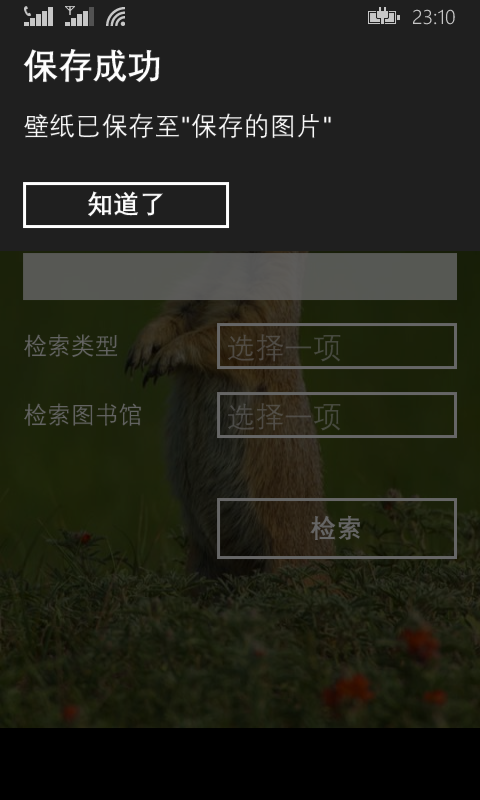
            ContentDialog dialog = new ContentDialog()
            {//http://www.bcmeng.com/contentdialog/ 在 Windows Phone 应用中访问媒体库(Windows Phone 应用商店应用)
                Title = "保存成功", //标题
                Content = "壁纸已保存至"保存的图片"",//内容
                FullSizeDesired=false,  //是否全屏展示
                PrimaryButtonText = "知道了",//第一个按钮内容
                //SecondaryButtonText = "No, Dont!"
            };
            await dialog.ShowAsync();
            //dialog.SecondaryButtonClick += dialog_SecondaryButtonClick;//第二个按钮单击事件
            //dialog.PrimaryButtonClick += dialog_PrimaryButtonClick;

            //ContentDialogResult result = await dialog.ShowAsync();
            //if (result == ContentDialogResult.Primary) { } //处理第一个按钮的返回
            //else if (result == ContentDialogResult.Secondary) { }//处理第二个按钮的返回
        }//2014-11-10 18:00

    }
}
|

Reader Echoes
10 comments